
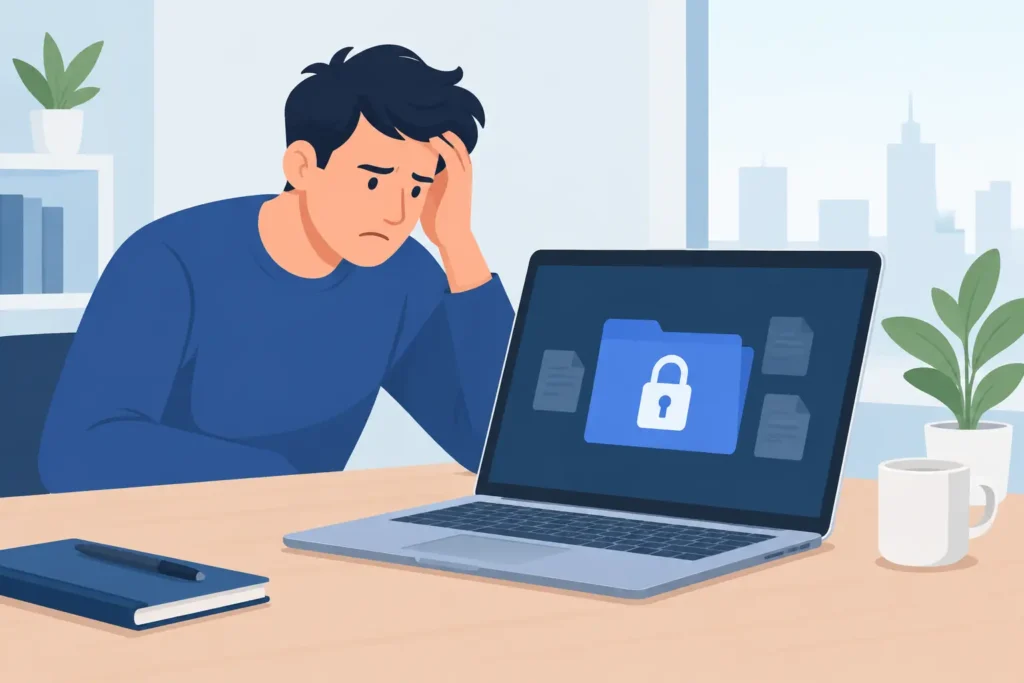
A laptop can appear to fail in an instant: yesterday’s client folder will not open, family photographs have vanished from the desktop, or the machine asks to format a drive containing years of work. Understanding why laptop data becomes inaccessible helps you avoid the one mistake that can turn a recoverable incident into permanent loss: repeatedly writing new data to the affected storage.
Inaccessible does not always mean deleted. In many cases, the files remain on the drive, but the laptop can no longer locate, read or decrypt them. The cause may be a failing hard drive, an SSD controller fault, file system corruption, an operating system problem, encryption, accidental changes to permissions or physical damage. The right response depends on which of these has happened.
Why laptop data becomes inaccessible
A laptop stores information across several layers. There is the physical storage device, such as a hard disk drive or SSD; the controller that communicates with it; the file system that records where files are stored; and the operating system that presents those files to you. A fault in any one layer can make data appear unavailable.
This is why a laptop that will not boot is not automatically a data-loss case. Equally, a laptop that starts normally may still have a serious storage problem. A document may be inaccessible because Windows cannot read a damaged section of the drive, because a BitLocker recovery key is required, or because the account no longer has permission to access the folder.
The distinction matters. A software issue may sometimes be resolved without touching the original data. A mechanically failing drive needs a far more cautious approach, because every power cycle can worsen the damage.
Hard drive failure and bad sectors
Older and many high-capacity laptops use hard disk drives with spinning platters and moving read/write heads. They can develop bad sectors as they age, after a knock, or following overheating. Files stored in those sectors may freeze when opened, generate read errors, or disappear from the file explorer.
Warning signs include clicking, buzzing, repeated spinning up and down, extremely slow loading, blue-screen crashes, and a drive that intermittently vanishes from the laptop. A clicking hard drive should be switched off rather than scanned, repaired or repeatedly restarted. Consumer recovery software and operating-system repair tools require the drive to read data repeatedly. That can place extra strain on damaged components.
A dropped laptop is particularly concerning. Even if it works immediately afterwards, the impact may have affected the heads or platters. Continuing to use it can reduce the amount of information a specialist can recover.
SSD faults can be sudden and silent
SSDs have no moving parts, but they are not immune to failure. Their weakness is different: flash memory cells wear over time, firmware can fail, and controller faults can make the entire drive disappear without warning. An SSD may be recognised one day and absent from the BIOS the next.
Unlike a hard drive, an SSD often gives few audible or physical warnings. It may become read-only, report a capacity of zero, request formatting, or simply prevent the laptop from starting. Modern SSDs also use TRIM, a command that can permanently clear blocks after files are deleted. That makes prompt, specialist assessment especially important where vital data has been deleted or an SSD has been reset.
File system corruption after an interruption
The file system is the map that tells the laptop where every folder and file belongs. A sudden power loss, flat battery, forced shutdown, failed update or software crash can damage that map. The files may still exist physically, yet Windows or macOS may show an empty drive, ask to initialise or format it, or report that the disk needs repairing.
Running a repair utility can be appropriate for a fully backed-up drive where the data is not critical. It is a calculated risk where the only copy of important work is involved. Repair tools may alter directory structures, remove entries they judge invalid, or write changes back to an unstable drive. For irreplaceable data, preserve the original first and work from a forensic image where possible.
Operating system, update and boot problems
Not every inaccessible file is caused by a failed disk. Windows updates, corrupted user profiles, damaged boot records and macOS startup faults can stop a laptop from loading normally. A black screen, recovery loop or login failure can feel catastrophic, but the storage may be intact.
There is a trade-off here. Basic troubleshooting may restore access quickly, but actions such as reinstalling the operating system, using “Reset this PC”, or restoring a laptop to factory settings can overwrite recoverable information. If the data matters more than getting the laptop working today, treat recovery of the data as the first objective.
Encryption, passwords and access permissions
Security controls can make perfectly healthy data inaccessible. BitLocker, FileVault and encrypted containers protect confidential material precisely by preventing access without the correct password or recovery key. A motherboard replacement, major hardware change, forgotten password or lost recovery key may trigger an encryption recovery screen.
Businesses also encounter access issues after staff changes, account migrations, ransomware incidents or altered network permissions. The files may be present but unavailable to a particular user. Do not assume this is a storage failure, and do not rely on password-bypass tools from unverified sources. They can compromise evidence, confidentiality and the remaining data.
Accidental deletion, formatting and overwritten files
Deleted files commonly remain recoverable until their storage space is reused. The risk is that laptops constantly write temporary files, updates, browser caches and synchronisation data in the background. Installing recovery software onto the affected internal drive, downloading files, or continuing routine work can overwrite the very documents you need.
Formatting is similarly misunderstood. A quick format may remove the file system’s references without immediately erasing every file. A full format, secure erase or SSD TRIM operation is more destructive. Recovery prospects therefore depend on the device type, the action taken and what has happened since.
What to do when laptop files cannot be accessed
The first few decisions are often more important than the first tool you try. If the laptop is making unusual noises, has suffered liquid damage, has been dropped, or cannot detect its internal drive, switch it off and keep it off. Do not dismantle it or place it in a freezer. Both actions can make professional recovery more difficult.
For a laptop that is stable but showing an error, avoid formatting, initialising, reinstalling the operating system or accepting automatic “fix” prompts until you know what they will change. Take a photograph of error messages and note whether the drive appears in the BIOS, Disk Management or macOS Disk Utility. That information helps identify whether the fault is likely physical, logical or security-related.
Use the following immediate priorities when the files are important:
- Stop saving, downloading and installing anything to the affected internal drive.
- Disconnect external power after a suspected physical failure or liquid exposure.
- Keep recovery keys, passwords and relevant account details available, but never share them casually.
- Record the laptop model, storage type, symptoms and events immediately before access failed.
- Seek a professional assessment before running repair software on a drive with no current backup.
If you have a verified backup, restoring from it may be the quickest route. Check its date and open a few important files before relying on it. Cloud synchronisation is useful but not always a backup: deletions, corruption and ransomware-encrypted files can synchronise too.
When professional recovery is the safer option
Professional data recovery is most appropriate when the laptop holds the only copy of business records, legal material, creative projects, surveillance footage, research, personal photographs or other irreplaceable files. It is also the prudent option for clicking hard drives, failed SSDs, encrypted systems, liquid damage, RAID or NAS-connected laptop workflows, and any case where confidentiality matters.
A credible provider should explain the likely cause, assess the storage device before quoting, and keep you informed about the recovery path. For physical drive faults, cleanroom-capable handling and specialist imaging equipment are not optional extras. They are central to preventing additional damage. For sensitive files, ask how data is protected, where the work is carried out and whether the provider has a real technical facility rather than simply forwarding devices elsewhere.
Data Recovery Lab combines forensic-grade recovery capability with secure handling, transparent assessment and a no-recovery, no-fee approach. That matters when the device contains information you cannot afford to expose, overwrite or lose.
A laptop failure is stressful because it removes access without warning. Preserve the device, resist destructive quick fixes, and make decisions based on the value of the data rather than the convenience of getting the laptop running again. The files may be far more recoverable than they first appear.
