
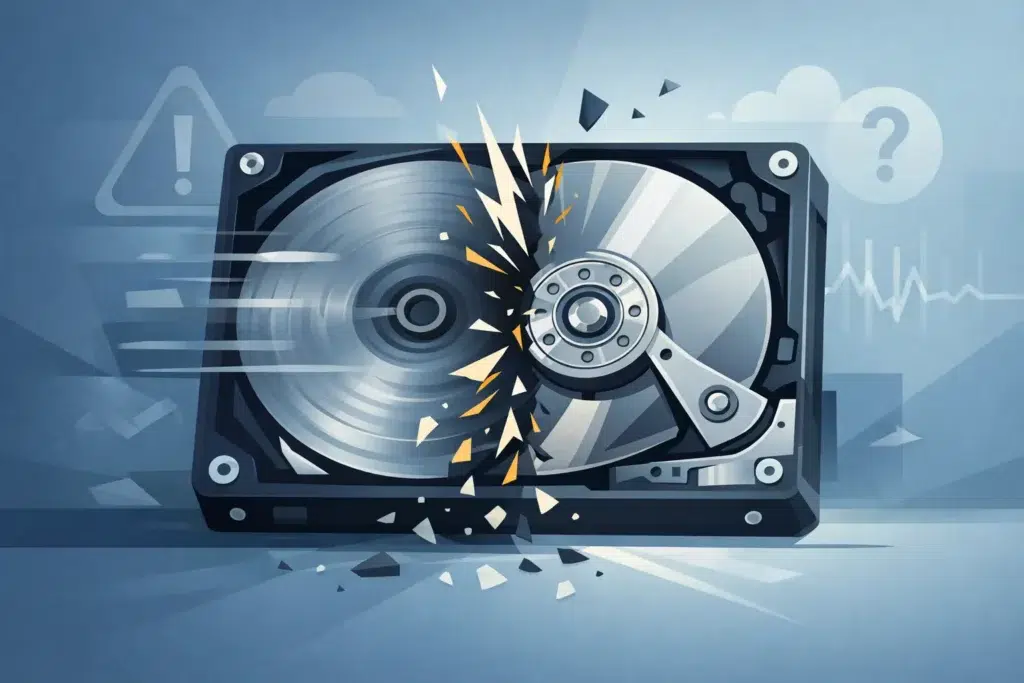
A hard drive that suddenly falls silent can turn an ordinary working day into a serious data-loss event. Understanding why a drive stops spinning matters because every extra power-on attempt can worsen damage to the platters, heads or electronics. If the drive contains business records, legal files, family photographs, video footage or years of work, treat the failure as a recovery case first and a repair problem second.
Why a Drive Stops Spinning
Only traditional hard disk drives have spinning components. Inside the sealed unit, magnetic platters rotate at high speed while read/write heads fly just above their surface. If the platters cannot rotate, the drive cannot access its file system, even if it is still detected by a computer.
A solid-state drive has no motor or platters. An SSD that becomes inaccessible may have a controller, firmware, power or memory-chip fault, but it will not literally stop spinning. This distinction matters when describing the problem to a recovery specialist.
For a mechanical hard drive, a loss of spin usually points to one of several fault types. The most common are a failed motor, seized spindle bearing, heads stuck to the platter surface, a damaged printed circuit board, or insufficient power reaching the drive. In some cases, the drive does spin briefly and then stops because its firmware cannot initialise correctly or the heads cannot read essential system data.
The drive may have failed after a drop, power cut, liquid exposure or overheating. It may also fail without an obvious incident. Mechanical parts wear, electronics age and small manufacturing defects can become critical only after thousands of hours of use.
The Symptoms Can Narrow Down the Cause
A completely silent drive is not always a seized drive. On an external hard drive, a damaged USB cable, failed power adaptor or faulty enclosure can prevent the disk from receiving enough power. This is one reason a professional assessment checks the whole chain, rather than assuming the disk mechanism itself is at fault.
A 3.5-inch desktop drive normally needs an external power supply. If its adaptor has failed, the drive may remain silent or repeatedly attempt to start. A 2.5-inch portable drive usually draws power through USB, so a weak port, damaged cable or low-quality hub can cause intermittent spin-up and disconnection. Testing with a known-good, compatible power source may be reasonable where the data is not critical and there are no signs of physical damage. Do not keep swapping cables and ports for hours if the device starts clicking, beeping or repeatedly spins up and down.
Sound is useful evidence, but it is not a diagnosis on its own. A faint hum followed by silence can indicate a motor or spindle problem. A repeated click is often associated with head or firmware failure. A chirp, beep or short whine may occur when the motor cannot overcome resistance, including heads that have become stuck on the platter. A drive that spun normally yesterday but now makes abnormal noises should be switched off immediately.
There is a crucial difference between an inaccessible drive that remains stable and one that is deteriorating. If a healthy-sounding drive is detected consistently and only a few files are missing, a controlled backup or logical recovery may still be possible. If it is physically failing, conventional copying software can force repeated reads from damaged areas and turn a recoverable fault into more serious media damage.
What Causes a Hard Drive to Seize or Lose Power?
Mechanical failure is often the most urgent cause. The spindle motor sits beneath the platters and is designed for precise, continuous operation. When it fails, the platters may not move at all. Replacing a motor is not a home repair: it requires specialist equipment and, in many cases, controlled work on a compatible donor mechanism.
Stiction is another common mechanical issue. This happens when the read/write heads adhere to the platter surface rather than parking safely on the ramp. It is more likely after a shock, an extended period of storage or a sudden loss of power. Forcing the motor to start can scratch the magnetic surface, which is where the data is stored.
Electronic faults can look very similar from the outside. A surge, failing component or damaged USB bridge board can stop the drive from receiving or regulating power correctly. Simply moving the circuit board from another drive is risky. Modern drives commonly store unique adaptive data in their original electronics, and a donor board that appears identical may not allow the drive to read its platters.
Firmware faults sit between physical and logical failure. A drive may spin, click and then become unavailable because it cannot load internal service information. These faults need specialist tools and careful imaging procedures. Formatting the drive, running repair utilities or reinstalling the operating system will not correct a mechanical or firmware issue, and may complicate recovery.
What to Do When the Drive Will Not Spin
The safest next step depends on the value of the data and the symptoms. If the files are important, stop using the drive before trying a sequence of improvised fixes. Power cycling can be especially harmful where heads are damaged or stuck.
You can carry out a brief external check: inspect the cable and connector for damage, avoid USB hubs, and confirm that a desktop drive is using the correct power adaptor. Do this once, not repeatedly. If the drive is still silent, fails to appear, clicks, beeps, smells of burning or was dropped, disconnect it and leave it powered off.
Do not open the drive. Hard drives are assembled in controlled environments because microscopic dust can damage platter surfaces. A kitchen table, office desk or garage is not a cleanroom. Do not tap, shake, strike, freeze or heat the unit either. These popular internet remedies can cause irreversible platter and head damage, while making professional recovery more difficult.
Avoid recovery software when a drive will not spin or makes unusual sounds. Software can only work when the hardware can read data reliably. It cannot repair a seized motor, release stuck heads or rebuild damaged electronics. The right objective for a physically damaged drive is to stabilise it, repair the fault where appropriate, and create a sector-level clone before attempting file recovery.
How Professional Recovery Protects the Data
A proper assessment begins with controlled diagnostics. Technicians establish whether the fault lies in the external enclosure, power circuitry, controller board, firmware or internal mechanics. Where an internal inspection is required, it is performed in a suitable cleanroom environment, not as a trial-and-error exercise.
The recovery approach should match the fault. An enclosure problem may need only a safe interface change. A firmware fault may require specialist access to service areas. A head failure may require compatible donor parts and precise alignment before the media can be imaged. The drive is not repaired for long-term reuse; the priority is extracting data safely to a separate device.
For businesses, chain of custody and confidentiality are also part of the technical process. Customer records, financial information, case files and proprietary designs should be handled under documented security controls. For private customers, the same standard protects irreplaceable photographs, messages and personal documents.
At Data Recovery Lab, failed drives are assessed in a specialist London lab, with secure handling and a clear recovery route before chargeable work proceeds. This is particularly valuable when the device contains sensitive information or the failure has interrupted business operations.
When Time Matters Most
A hard drive that stops spinning is not automatically beyond recovery. The outcome depends on the cause, the condition of the platter surfaces, and what has happened since the first fault. A drive that has been left switched off after failure is often in a far better position than one repeatedly restarted in the hope that it will work one more time.
Keep the drive, its original enclosure and power adaptor together, note what happened immediately before the failure, and avoid further experimentation. That single decision can preserve the best possible chance of recovering the files that matter.
