
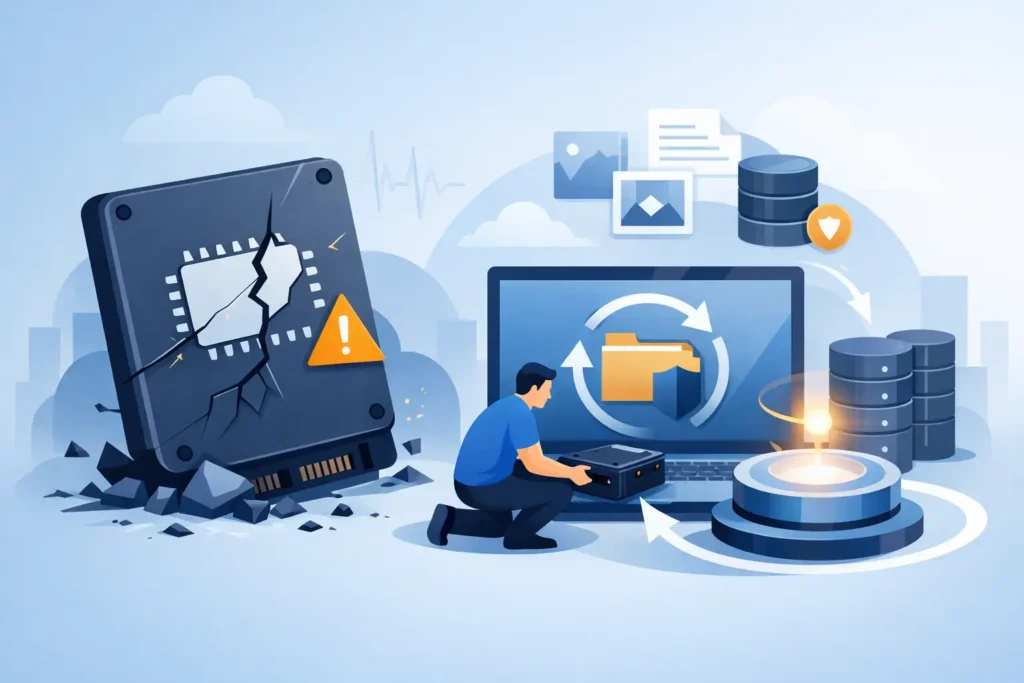
An SSD can fail without the familiar warning soundtrack of an old hard drive. No clicking. No grinding. One moment your files are there, the next the drive vanishes from the BIOS, throws read errors, or leaves a laptop stuck in a boot loop. That is exactly why an SSD failure recovery guide matters. The wrong first move can turn a recoverable case into permanent loss.
Solid-state drives are fast, quiet and reliable in normal use, but when they fail, they often fail in ways that are far less forgiving than mechanical drives. Many SSDs rely on complex controllers, firmware mapping tables, TRIM processes and encrypted storage layers. Once those systems break down, file access can disappear immediately, even when the memory chips themselves are still physically intact.
What makes SSD failures different
Traditional hard drives store data in a more direct physical layout. SSDs do not. They spread data across memory cells, constantly remap blocks, manage wear levelling and use controller logic to decide where information actually lives. That design improves performance and lifespan, but it complicates recovery.
In practice, this means the symptoms you see on screen may not match the real fault. A drive that appears empty may not be wiped. A drive that is not detected may still contain intact NAND memory. A drive that asks to be formatted may have suffered logical corruption, controller instability or firmware damage rather than file deletion alone.
TRIM is another major factor. On an SSD, deleted data can be actively cleared in the background, reducing the window for successful recovery. It does not happen in every case, and it depends on the operating system, file system, SSD model and whether the drive remains powered after deletion. But it is one reason speed matters.
Common warning signs in an SSD failure recovery guide
Some failures are immediate, but many cases start with smaller symptoms that are easy to ignore. You may notice files taking longer to open, folders showing the wrong size, applications freezing during save operations, or the system reporting disk errors after updates or restarts.
More serious signs include the SSD disappearing from Windows or macOS, the laptop failing to boot, repeated blue screens, the BIOS not detecting the drive, or the device showing the wrong capacity. In business environments, an SSD in a server or NAS may drop out of an array and trigger degraded performance long before total failure.
Heat, power issues and firmware faults are common contributors. So are worn NAND cells, failed controllers, accidental formatting, file system corruption and electrical damage after a charger or power supply fault. Physical shock is less of a factor than with hard drives, but SSDs are not immune to board-level damage.
What to do first if your SSD fails
The safest first step is to stop using the device. If the SSD still powers on, every reboot, repair attempt or software scan may change the data state. That matters even more if deleted files are involved, because background operations can reduce recovery chances.
If the SSD is in a laptop or desktop and the data is important, switch the machine off properly and leave it off. Do not reinstall the operating system. Do not run CHKDSK, First Aid, startup repair or random freeware recovery tools just because they are easy to download. Those tools have their place in low-risk logical cases, but they are routinely used on unstable drives that should never be stressed.
If this is a business device, document what happened before the failure. Note any error messages, unusual behaviour, updates, power cuts or incidents involving overheating. That information can help a recovery lab narrow down whether the issue is logical, electrical, firmware-related or controller-based.
The biggest mistakes people make
The most damaging mistake is continuing to use the SSD after data loss or failure. Saving files, browsing the web, exporting video or even letting the machine idle can generate writes to the same storage area you are trying to recover from.
The second is treating an SSD like a hard drive. Cloning a failing hard drive can sometimes be a sensible first step in controlled conditions. With SSDs, that depends heavily on the fault. If the controller is unstable or the drive is dropping in and out, repeated read attempts can make matters worse.
The third is opening the device or trying improvised electronics repairs. SSD recovery is not a matter of swapping a board and hoping for the best. Many drives use unique firmware, adaptive data and encryption tied to the original controller. Poor handling can destroy evidence and reduce professional recovery options.
When DIY recovery may work
A limited DIY attempt may be reasonable if the SSD is fully detected, stable, and the problem is clearly logical rather than physical or electronic. For example, you deleted files from an external SSD, the drive still mounts normally, and no unusual behaviour is present. Even then, you should stop using it immediately and work from another machine if possible.
The trade-off is simple. Consumer software may recover recently deleted files in straightforward cases, but it is not designed for unstable firmware, failed controllers or drives affected by TRIM. If the data is commercially sensitive, legally relevant or personally irreplaceable, experimenting often costs more than it saves.
That is especially true for businesses. A rushed in-house attempt can compromise audit trails, overwrite metadata or create confidentiality concerns if staff use unapproved third-party tools. High-stakes data loss needs controlled handling, secure processes and a clear chain of custody.
When you need a professional SSD failure recovery guide in practice
If the SSD is not detected, disconnects intermittently, shows the wrong capacity, becomes extremely slow, has suffered electrical damage or contains business-critical data, professional assessment is the sensible route. The same applies if previous software attempts have failed.
Proper SSD recovery often requires specialist equipment, firmware-level access and chip-off or controller analysis techniques that are simply not available outside a real lab environment. This is where experience matters. Two SSDs with similar symptoms may require completely different workflows depending on the controller family, encryption architecture and failure mode.
A credible provider should be able to explain the process clearly: initial assessment, fault diagnosis, a fixed quotation, secure handling and no-recovery, no-fee terms. That matters because customers in distress need certainty, not vague promises. For confidential business, legal or personal data, GDPR-compliant handling is not a nice extra. It is part of basic professional standards.
What a specialist lab actually does
Professional SSD recovery is rarely about pressing a button. A lab may need to stabilise power delivery, repair damaged components, access firmware service areas, rebuild degraded translation tables or extract raw NAND data for reconstruction.
That reconstruction stage is where many difficult cases are won or lost. Data on SSD memory chips is not stored in a clean, user-readable sequence. It often needs reassembly based on controller behaviour, wear patterns, error correction and proprietary algorithms. If encryption is involved, recovery may depend on preserving the original controller path or extracting the right metadata before the device deteriorates further.
This is why transparent assessment matters. An honest lab will tell you when a case is straightforward, when it is complex, and when recovery prospects are limited. Serious providers do not oversell certainty. They reduce risk through skill, equipment and process.
Time, cost and recovery chances
Customers often ask the same question first: can my files be recovered? The truthful answer is that it depends on the failure type, the SSD model, whether TRIM has acted, and what has happened since the issue began.
Logical damage on a stable SSD may be resolved quickly. Firmware and controller failures usually take longer. Severe electrical damage, prior tampering or failed DIY attempts can reduce the success rate and increase labour time. Speed is possible, especially in emergency cases, but proper recovery still requires diagnosis before anyone can make a responsible promise.
Cost follows the same pattern. A reputable company should assess the drive first, explain the fault in plain English and provide a fixed quote before recovery work proceeds. That protects the customer from vague pricing and protects the process from guesswork.
How to reduce the risk next time
No SSD failure recovery guide is complete without prevention, even though prevention is never much comfort when the files are already missing. Keep at least one offline backup and one separate cloud or network backup for important data. If you run a business, test restores regularly rather than assuming backup software is doing its job.
Watch for storage health warnings, unexplained slowdowns and repeated file errors. Replace ageing SSDs before they become critical points of failure, especially in laptops used for travel and in workstations storing active project data. If a device starts behaving oddly, treat that as a warning, not an inconvenience.
For anyone facing SSD data loss right now, the priority is simple: stop using the drive, avoid quick-fix tools unless the case is clearly low risk, and get a proper assessment before the damage spreads. When the files matter, calm decisions made early usually save far more than panic ever does.
