
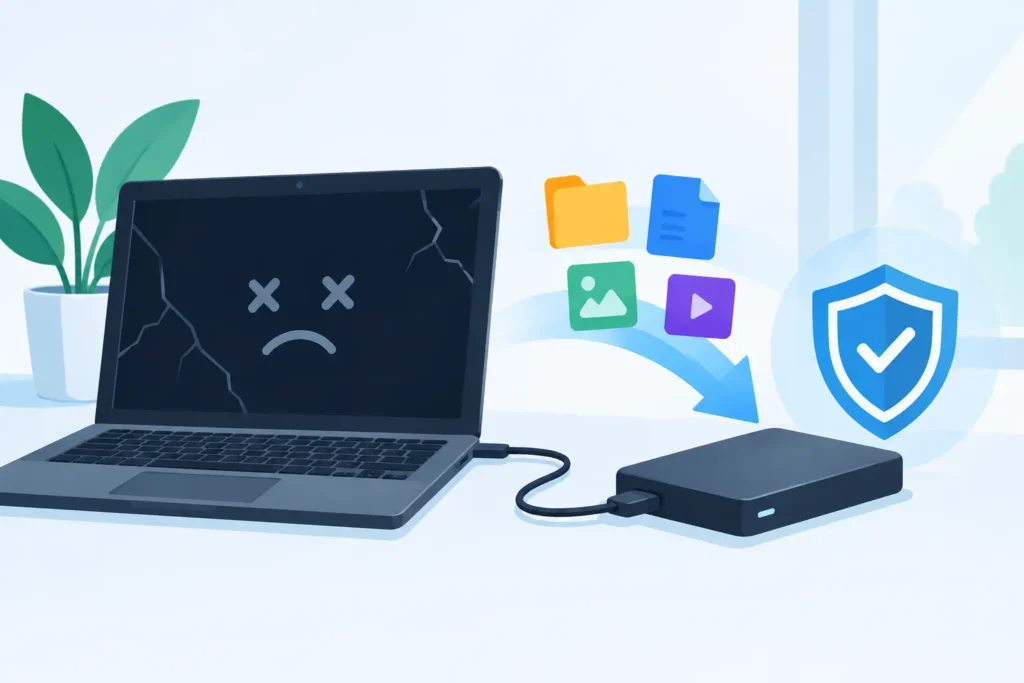
A laptop that will not start can feel like a total loss, particularly when it holds client records, family photographs, business accounts or years of creative work. But a dead computer and lost data are not the same thing. When you need to retrieve files from a dead computer, the first decisions you make can have a direct effect on whether those files remain recoverable.
The priority is simple: stop repeated attempts to start the machine, establish what has failed, and protect the storage device from further damage. A failed screen, battery, charger, motherboard or operating system may leave the drive and its data completely intact. Conversely, a clicking hard drive, failed SSD controller or liquid-damaged laptop needs specialist handling before well-meaning troubleshooting turns a recoverable case into a more difficult one.
First, do not assume the drive has failed
A computer can appear dead for many reasons. If its power light does not come on, it may have a charging fault or motherboard failure. If it powers on but the display stays black, the issue could be the screen, graphics hardware or memory. If it reaches a message such as “no boot device”, “operating system not found” or a blue recovery screen, the computer may be unable to boot even though the files are still present.
Listen and observe without repeatedly cycling the power. A healthy mechanical hard drive usually spins smoothly. Clicking, scraping, beeping or repeated spin-up and spin-down noises are danger signs. Turn the computer off immediately if you hear them. Each additional attempt can damage the drive’s internal surfaces or read heads.
For an SSD, silence does not mean safety. SSD failures are often electronic or firmware-related, and the drive can disappear without warning. Continuing to restart a system can trigger background activity, encryption prompts or automatic repair processes that complicate recovery.
How to retrieve files from a dead computer without making matters worse
The safest route depends on the computer, the storage type and the cause of failure. A desktop PC with a removable SATA hard drive is very different from a modern ultrabook with a soldered SSD. So is a Mac protected by FileVault or a business laptop encrypted with BitLocker.
If the computer itself has failed but the drive is removable and showing no signs of physical failure, it may be possible to remove it and connect it to another machine using a suitable external enclosure or adapter. This is best treated as a copying exercise, not a repair exercise. If the drive appears, copy the most important folders first to a separate, reliable drive. Do not save anything back to the original device.
However, do not attempt this if the drive is clicking, overheating, not detected consistently, has suffered a drop or liquid exposure, or contains sensitive business data that requires controlled handling. Opening a hard drive outside a cleanroom is especially risky. Dust particles invisible to the eye can cause permanent damage to the platters.
A removable drive can also be inaccessible because of encryption. BitLocker may require the recovery key, while FileVault-protected Macs require a valid user password or recovery key. No legitimate recovery provider can bypass strong modern encryption without the required credentials. The data may be physically recoverable, but it will remain unreadable without the key.
Avoid software fixes on a failing drive
File recovery software has a limited place when a storage device is stable, detected correctly and has been accidentally deleted or formatted. It is not an appropriate first response to a mechanically failing hard drive, an unstable SSD, RAID storage or a drive that vanishes during use.
Software scans place sustained demand on a damaged device. They can turn a partially readable disk into an unreadable one. Operating system repair tools can also overwrite file-system structures needed to reconstruct folders, filenames and timestamps. If the information is valuable, preserve the device in its current state and seek an assessment before running repairs.
Identify your computer’s storage arrangement
Knowing where the data lives helps determine the realistic recovery options. Traditional desktop computers often contain one or more 3.5-inch or 2.5-inch SATA hard drives or SSDs. Older laptops commonly use removable 2.5-inch drives. Many newer laptops, including some Macs and slim Windows models, use compact NVMe SSDs, proprietary storage modules or soldered flash memory.
External drives are not always simple either. Some portable USB drives use built-in encryption at the controller level. The data may be inaccessible if the USB bridge electronics fail, even where the internal disk itself is healthy. Network storage, RAID arrays and servers introduce further complexity because files are distributed across multiple disks and depend on the array’s layout, order and configuration.
This is why a quick swap is not always a safe solution. Removing the wrong drive from a RAID or trying to rebuild an array without a verified configuration can overwrite critical metadata. For business systems, take the server or NAS offline, label every disk by bay position and do not initialise, rebuild or format anything.
When professional recovery is the right choice
Professional data recovery is appropriate when the files are valuable, the storage device is damaged, or the situation involves encryption, RAID, unusual hardware or sensitive information. A proper lab does more than plug a disk into another computer. Technicians assess the fault, create a controlled sector-level image where possible, stabilise failing media, and recover files from the copy rather than working destructively on the original.
For mechanical hard drives, this may involve cleanroom work to address failed heads, seized motors or contaminated internals. For SSDs, it can require specialist tools and knowledge of controller behaviour, firmware translation layers and NAND memory. For laptops with soldered storage, board-level diagnosis may be needed simply to make the encrypted data accessible.
Choose a provider that can explain the process plainly and handle the device securely. Confidentiality matters as much as technical capability when a computer contains legal papers, payroll information, patient records, customer files or private photographs. Look for a real lab, clear assessment terms, fixed quotation before work proceeds, and a no-recovery, no-fee policy where available.
Data Recovery Lab provides free collection and assessment, GDPR-compliant handling and specialist recovery for hard drives, SSDs, Macs, laptops, RAID and other complex storage media. For urgent business incidents, early intervention can protect both recoverability and operational continuity.
What to provide with the device
Useful information can reduce delays and prevent incorrect assumptions. Tell the technician what happened immediately before the failure: a fall, a power cut, an update, liquid contact, unusual noises or a gradual slowdown. Include the computer model, drive capacity if known, whether the data was encrypted, and which folders or files matter most.
For a business device, identify any deadlines and whether specific material is required, such as accounting databases, virtual machines, CCTV footage, CAD drawings or email archives. This helps the recovery team prioritise validation once access to the data has been restored.
Do not write passwords on the device or inside its packaging. Provide credentials through an agreed secure channel only when they are necessary to decrypt or verify recovered data.
Pack and protect the computer properly
If you are sending a laptop or drive for assessment, keep it switched off. Place a removed drive in an anti-static bag if available, then cushion it firmly in a rigid box. A laptop should be protected from movement inside the package, particularly after a drop. Do not post a bare hard drive in a padded envelope.
For liquid-damaged equipment, do not use a hairdryer, place it on a radiator or attempt to charge it. Heat and power can accelerate corrosion and cause short circuits. Keep it dry, powered down and professionally assessed as soon as possible.
The most valuable action is often the least dramatic one: stop using the computer before the problem becomes worse. A dead machine may still hold every file you need, and preserving that possibility gives recovery specialists the best chance to return it safely.
