
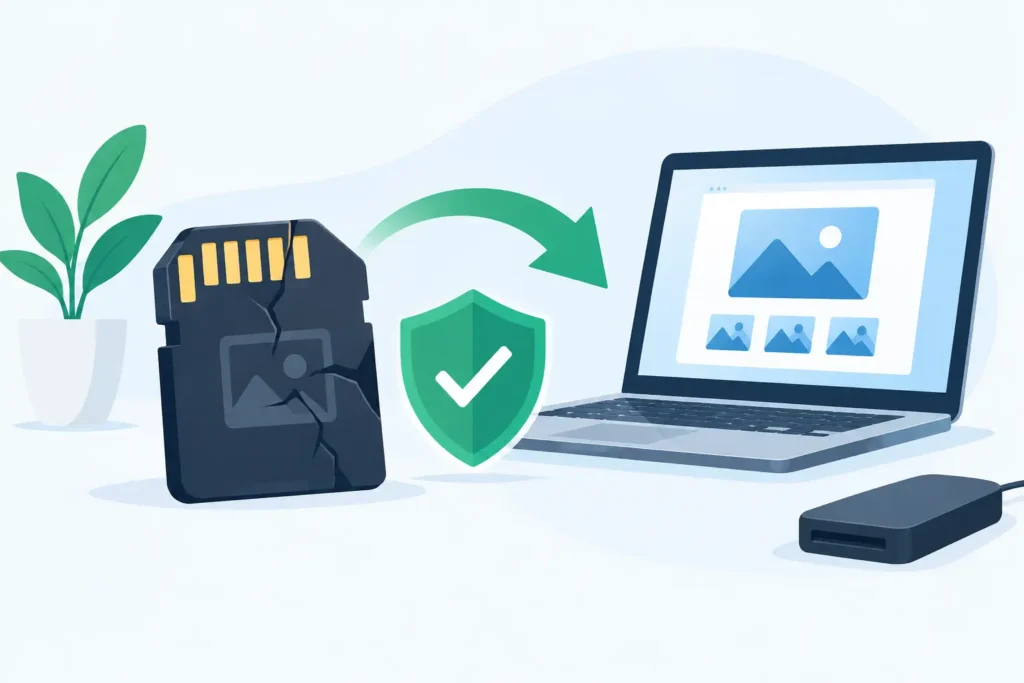
A camera displaying “card cannot be read” can stop a job in its tracks. The same applies when a phone, dashcam or computer asks to format a memory card containing files you cannot replace. Searches for “how recover unreadable memory cards” often happen at precisely the wrong moment: after a shoot, before a deadline, or when the card holds irreplaceable family footage. The first decision matters more than the recovery software you choose. Stop writing to the card and do not accept any format or repair prompt.
What an unreadable memory card message actually means
An unreadable card is not necessarily an empty or permanently failed card. It means the device cannot access the information it needs to locate files correctly. That may be caused by a damaged file system, accidental formatting, a failing controller, worn flash memory, corrupted directory records or a fault in the card reader.
The wording of the message can be misleading. “Format card”, “unsupported file system”, “insert disk” and “card error” do not diagnose the fault. They only confirm that the device cannot read the card in its current state. Your photos, videos and documents may still be present in the memory chips, even when the camera or computer cannot display them.
The risk is that many devices try to help by writing to the card. A camera may create folders, a phone may update its media database, and an operating system may offer a repair utility. Each write can overwrite fragments of the data you need recovered or make a logical fault harder to analyse.
First response: protect the card and the evidence
Remove the card safely, then put it somewhere clean, dry and clearly labelled. If it is a full-size SD card, move the physical write-protect switch to the locked position. This does not repair the card, but it reduces the chance of accidental changes during handling.
Before attempting any recovery, follow these rules:
- Do not format the card, even if the device says formatting will make it usable again.
- Do not save new files to it or place it back into the camera to test another recording.
- Do not run repair commands that alter the file system, including automatic disk checks.
- Do not repeatedly reconnect a card that disconnects, heats up or appears only intermittently.
If the card was used in a camera, also keep the camera and any relevant adapters aside. The file type, recording mode and device model can help a recovery specialist validate recovered video and rebuild the correct folder structure.
How to recover unreadable memory cards: identify the failure
A careful diagnosis separates a safe, limited DIY attempt from a case that needs lab recovery. Start with the least intrusive checks. Try one known-good card reader connected directly to another computer. Avoid cheap multi-card hubs and adapters where possible, as they can cause their own read errors.
If the card mounts and you can see files, copy them immediately to a different drive. Do not cut and paste. Use copy only, beginning with the most valuable folders. If copying freezes, slows dramatically or reports read errors, stop rather than forcing the system through repeated retries.
If a different reader or computer recognises the card normally, the original reader, USB port or adapter may be the problem. That is the best-case outcome. However, do not assume the card is healthy simply because it becomes readable once. Back it up in full before using it again.
When the card appears as the correct size but asks to be formatted, the problem is often logical. The file allocation table, exFAT structure or directory information may be damaged while the underlying file content remains recoverable. Recovery software can sometimes help in this situation, but it should scan a forensic image or clone of the card, not the original media.
When the capacity shows as zero bytes, the wrong size, or no device appears at all, the fault may be physical or controller-related. This is common with microSD cards, which contain densely integrated components and cannot be treated like a simple removable drive. Software cannot communicate with a card that the reader cannot detect reliably.
When recovery software is reasonable
Software recovery has a place when the card is stable, fully detected at the correct capacity, and the lost files are not uniquely critical. It can be effective after accidental deletion, a quick format or minor file-system corruption.
The safest workflow is to create a sector-by-sector image first, store that image on a healthy drive, then scan the image. Recover files to another drive, never back to the affected card. For photographers and videographers, check more than filenames: open a selection of recovered images and play video files from beginning to end. A file that appears in a recovery list may still be incomplete or corrupt.
There are trade-offs. Signature-based scans can find file fragments even when folder names are gone, but they may lose original filenames, dates and directory structure. Fragmented video is particularly difficult. A card may contain the data, yet successful reconstruction depends on understanding how the camera wrote clips across the storage area.
Stop the DIY route if the card repeatedly disconnects, produces I/O errors, becomes unusually warm, is physically cracked, has been through water damage, or contains evidence needed for a legal, business or insurance matter. Repeated software scans place sustained demand on an already unstable device.
Why damaged cards need specialist handling
Memory cards fail differently from conventional hard drives. Their controller manages wear levelling, error correction and the physical location of data across NAND flash chips. If that controller fails, the raw data may be scrambled or distributed in a way that ordinary tools cannot interpret.
Professional recovery may involve controlled imaging, specialist readers, component-level work and reconstruction of the controller’s data layout. For severely damaged microSD cards, this can require advanced chip-level techniques. The correct approach depends on the card type, fault condition and the value of the data. There is no safe universal fix, despite what a five-minute online tutorial may suggest.
For business records, confidential client material, CCTV footage or sensitive personal files, chain of custody also matters. A specialist should explain how your media is handled, where the work is performed and whether your data remains protected throughout assessment and recovery. Sending valuable media to an unknown intermediary can create avoidable security and accountability risks.
Data Recovery Lab provides free collection and assessment, secure handling and a no-recovery, no-fee model from a visitable London lab. That gives customers a clear route when an unreadable card contains data too important to risk on trial-and-error repairs.
Give recovery the best possible chance
Keep the card in its current condition. Do not open its casing, scrape contacts, apply heat, freeze it or attempt internet “fixes” involving chemicals. These actions can turn a recoverable electronic fault into permanent physical damage.
Write down what happened before the failure: the device used, whether the card was formatted, whether recording stopped unexpectedly, and every message shown on screen. This history can shorten diagnosis and help determine whether the issue is likely logical, electronic or physical.
The most useful closing thought is simple: an unreadable card is a warning, not a verdict. Treat it as read-only, make only low-risk checks, and escalate quickly when the files have real value. Preserving what remains is the strongest first step towards getting it back.
