
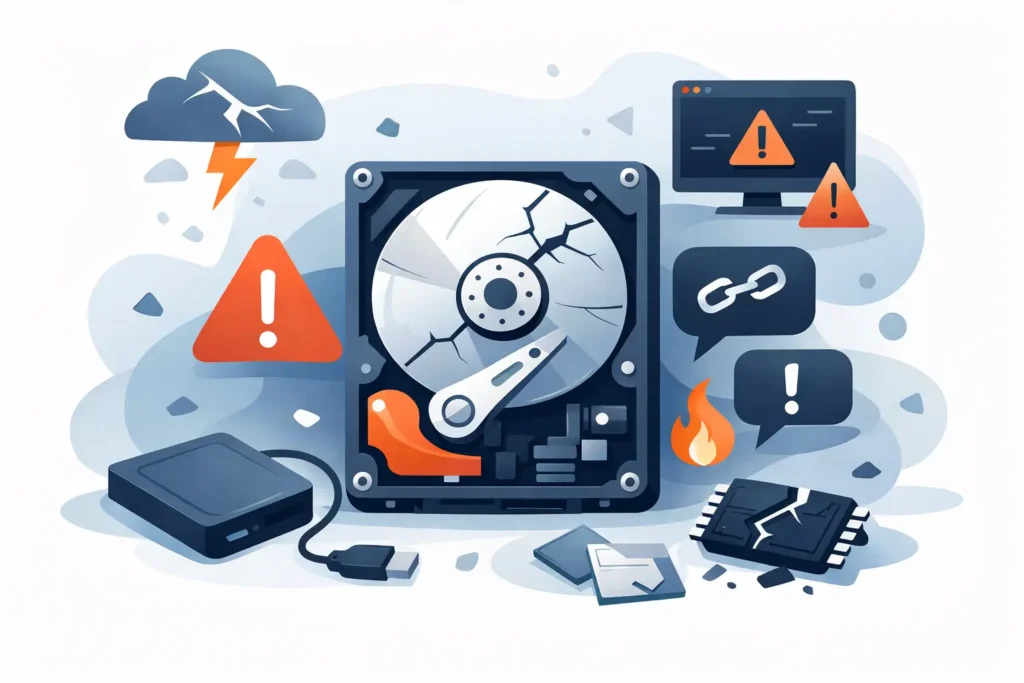
A drive rarely chooses a convenient moment to fail. It may be the laptop holding a tender submission, the external drive containing years of family photographs, or a RAID volume supporting a busy office. Recognising the top signs of drive failure early can be the difference between a straightforward recovery and a far more complex case.
The safest response is usually counterintuitive: stop using the affected device. Rebooting repeatedly, running repair software, or copying files from a physically failing drive can turn an intermittent fault into permanent data loss. The symptoms below help distinguish a minor computer issue from a storage device that needs urgent attention.
Top signs of drive failure on hard drives
Traditional hard disk drives contain spinning platters, read/write heads and a small motor. Because they are mechanical, their warning signs can be obvious, although not every failed drive makes a sound.
Clicking, grinding or repeated spinning noises
A healthy hard drive produces a low, consistent hum. Repeated clicking, chirping, scraping, grinding or a pattern of spin-up and spin-down noises is a serious warning. These sounds can indicate that the heads cannot read the platters, the motor is struggling, or the drive’s internal firmware cannot initialise correctly.
Do not open the drive, tap it, freeze it or continue restarting it in the hope that it will work once more. Modern drives require controlled, clean conditions and specialist tools when internal components are involved. Every additional power cycle can increase platter damage.
Files vanish, will not open or become corrupted
A document that suddenly reports errors, folders that appear empty, photographs that only partly load, or video files that refuse to play can all point to unreadable sectors. The drive may still seem usable, but it is no longer reading data reliably.
One corrupted file does not always mean a failing drive. It could be a software or application issue. A growing number of damaged files, especially across different folders, is more concerning. Treat it as a reason to secure what is still accessible, provided the drive is quiet and stable enough to do so.
The computer becomes unusually slow or freezes during file access
A failing drive can make a computer appear generally slow. File Explorer may stop responding, folders can take several minutes to open, and copying even small files may stall. This happens when the operating system repeatedly attempts to read weak or damaged areas of the disk.
It is easy to blame an ageing laptop or a Windows update, but the pattern matters. If delays occur mainly when accessing one external drive, one partition, or particular folders, the storage device itself may be responsible.
The drive disappears, reconnects or is not recognised
An external hard drive that keeps disconnecting is not automatically dead. A damaged cable, faulty USB port or underpowered hub can cause the same symptom. Test only the low-risk external components first: use a known-good cable and connect directly to the computer rather than through a hub.
If the drive is still not detected, appears intermittently, asks to be formatted, or shows the wrong capacity, stop troubleshooting. Formatting may overwrite valuable file-system information, and a drive that appears and disappears may be deteriorating rapidly.
SMART warnings and disk error messages
Many computers monitor drive health through SMART, short for Self-Monitoring, Analysis and Reporting Technology. Warnings about imminent failure, bad sectors, disk errors or a drive that needs repairing should be taken seriously, even if files still open.
SMART is useful but not definitive. Some drives fail suddenly with no warning, while others continue working despite a cautionary message. It is a prompt to back up accessible data immediately and plan replacement, not proof that the disk has time left.
SSD failure signs can look different
SSDs have no moving parts, so they do not click or grind. Their failure modes often involve the controller, firmware, memory chips or electrical components. That can make the warning signs less dramatic and, in some cases, more sudden.
Read-only behaviour or failed saves
An SSD nearing the end of its usable life may enter a read-only state. Existing files can sometimes be viewed, but new files will not save, edits fail, or the system reports that the disk is write-protected. This is a protective behaviour on some devices, but it should be treated as an urgent opportunity to preserve accessible data.
Boot failures and a missing system drive
If a computer reports “no boot device”, starts only intermittently, or no longer sees its internal SSD in BIOS or Disk Management, the fault may be with the drive rather than the operating system. Reinstalling Windows or macOS before preserving the data can complicate recovery and risks overwriting recoverable information.
A laptop that will not boot may also have a battery, motherboard or operating-system fault. Professional assessment is valuable because the correct next step depends on the actual point of failure. Guesswork can be expensive where business data, legal files or irreplaceable media are involved.
Sudden capacity changes or an unallocated drive
An SSD that reports the wrong size, appears as unallocated space, or requests initialisation may have a controller or firmware problem. Do not initialise, partition or format it if the files matter. Those actions may make logical recovery more difficult and can obscure evidence of the original structure.
When a drive problem is not necessarily drive failure
Not every alarming symptom means the storage media has failed. Loose connections, a failed power supply, a damaged enclosure, malware, file-system corruption and operating-system faults can all cause inaccessible data. RAID and NAS systems introduce further variables: one failed member may be survivable, while an incorrect rebuild can damage the entire array’s logical structure.
The practical distinction is simple. If the data has real value, avoid actions that write to the device until the cause is known. Do not run repair utilities on a clicking hard drive, do not rebuild a RAID array without confirming the disk order and configuration, and do not accept a format prompt as a fix.
What to do when you spot a warning sign
First, stop using the affected drive. Switch off a clicking, grinding or repeatedly disconnecting device rather than restarting it. Keep it dry, secure and protected from impact. Do not dismantle it or move the internal disk from an external enclosure unless you are certain the enclosure alone is at fault.
If the drive is healthy enough to remain connected and there are no physical-failure symptoms, copy the most important files first to a separate device. Start with documents, databases, photographs and current project folders. Avoid cloning or scanning a drive that is making abnormal noises or freezing heavily, as prolonged reads can worsen a mechanical failure.
For business systems, record what happened before anyone changes the setup. Note error messages, the affected disks, any recent power event, and whether the device is encrypted. In a RAID, NAS or server environment, label drives by bay and preserve their order. This information can materially improve the speed and safety of an assessment.
Why early specialist assessment protects recovery options
The more a failed drive is used, the less predictable its condition becomes. A hard drive with damaged heads can score platter surfaces. An SSD with a controller fault may become completely inaccessible without warning. In both situations, untested software fixes can add writes, alter metadata or place the device under further stress.
Data Recovery Lab provides free collection and assessment, fixed quotations before work begins, and a no-recovery, no-fee approach. Cases are handled in a real London laboratory by certified technicians, with GDPR-compliant processes for sensitive personal and business data. That matters when the device contains client records, confidential evidence, commercial work or memories that cannot be recreated.
A warning sign is not a verdict, but it is a moment to act carefully. If a drive is slowing down, disappearing, corrupting files or making unfamiliar noises, protect the device before trying to fix it. The best recovery decision is often the one made before a small fault becomes a complete loss.
