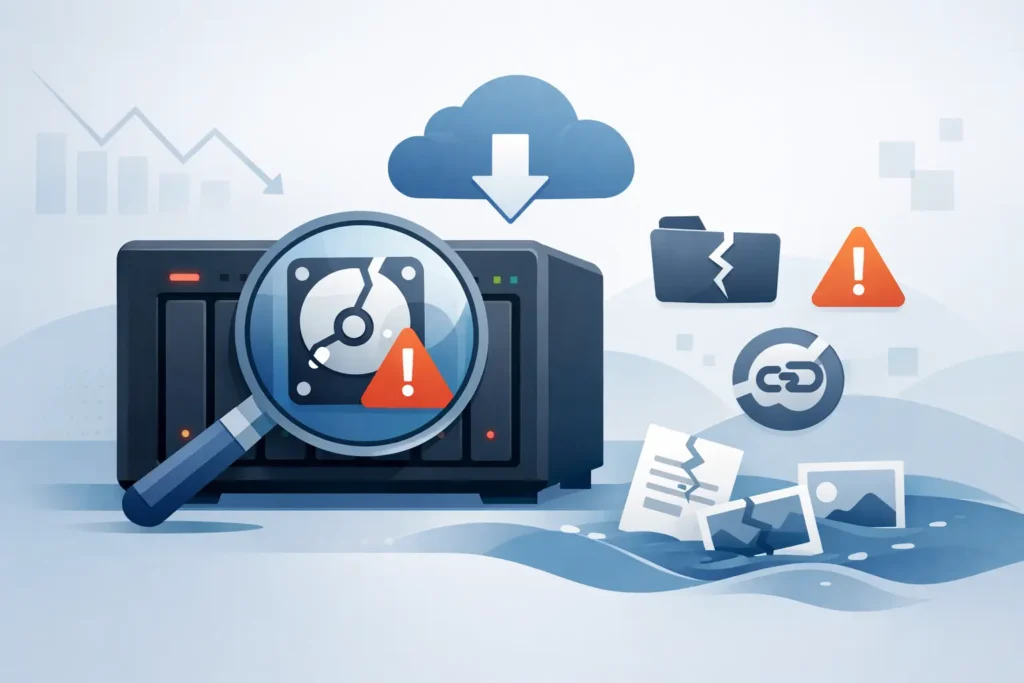
A NAS can appear to be working right up to the point it is not. Shared folders may still open, users may still save files, and the web dashboard may show green status lights – while a disk, RAID array, power supply or file system is already deteriorating. Knowing how to identify failing NAS equipment early gives you the best chance of protecting data before a manageable fault becomes a recovery case.
The key is not to treat every warning as a reason to keep troubleshooting. A NAS holds multiple points of failure, and repeated reboots, rebuilds or disk swaps can place additional strain on an already unstable array. The right response depends on what has failed, whether a verified backup exists, and whether the stored data is replaceable.
Early signs of a failing NAS
A healthy NAS should be predictable. Files should open promptly, shares should remain available, and the system should not require regular restarts to stay online. Sudden changes in that behaviour deserve attention, even if the NAS seems to recover after a reboot.
Slow access is often the first warning. You may notice folders taking much longer to load, large files copying at inconsistent speeds, media playback buffering, or applications reporting that a network location is unavailable. Network congestion can cause similar symptoms, so test from more than one computer and, where possible, with a different network cable or switch port. If the slowdown affects the NAS itself, or continues when the network has been ruled out, investigate the storage system.
Intermittent disconnections are more serious. A shared folder that vanishes and reappears, a NAS that drops out of a domain, or a dashboard that becomes unreachable can point to disk timeouts, a failing network interface, memory errors or a power issue. Do not assume it is simply a Wi-Fi problem, particularly when several users report the same fault.
Unusual sounds also matter. Repeated clicking, buzzing, grinding, spin-up and spin-down cycles, or a disk that cannot settle are classic signs of mechanical hard-drive trouble. Switch off unnecessary activity immediately rather than asking the device to scan, rebuild or copy large volumes of data. SSD-based NAS units are quieter, but they can fail without warning through controller faults, worn flash memory or firmware problems.
Check alerts, logs and drive health carefully
Most NAS platforms provide notifications through email, a mobile app or the administration interface. Review them rather than clearing them. Alerts such as “degraded volume”, “abnormal disk”, “bad sector”, “I/O error”, “RAID inactive” and “file system error” are not routine housekeeping messages.
A single bad-sector warning does not always mean an immediate disaster, but its context matters. A drive that has accumulated read errors, reallocated sectors, pending sectors or repeated connection resets is not one to trust with a rebuild. RAID rebuilds read every remaining disk heavily. That is precisely when another ageing drive can fail.
SMART information can help, but it is not a guarantee. A drive may report a passing SMART status and still be mechanically unstable or unable to read critical parts of the platter. Treat SMART as one diagnostic signal alongside the NAS logs, system behaviour and any physical symptoms.
Look for these patterns in the logs:
- Repeated disk read or write errors on the same bay
- Drives repeatedly disconnecting and reconnecting
- RAID synchronisation that stops, restarts or remains stuck at the same percentage
- File system checks that recur after normal shutdowns
- Unexpected power events, overheating warnings or fan failures
If the NAS reports errors across several drives at once, do not assume every disk has failed independently. A faulty backplane, power supply, controller or enclosure can affect multiple disks. Removing or replacing drives without recording their bay order can then make a complex recovery substantially harder.
A degraded RAID is a warning, not a safety net
Many owners assume RAID means their data is protected. RAID improves availability in some failure scenarios, but it is not a backup and it does not make a NAS invulnerable.
For example, RAID 1 may tolerate one drive failure, while RAID 5 can usually tolerate one and RAID 6 can usually tolerate two. But those limits depend on the array being healthy, the remaining disks being readable, and the controller retaining accurate configuration data. Accidental deletion, ransomware, corruption, enclosure failure and multiple degraded disks can still leave data inaccessible.
When an array becomes degraded, the safest immediate option may be to copy the most valuable files to separate storage – but only if the NAS is stable and files are opening normally. Prioritise current business documents, databases, project folders, photographs and unique video footage. Avoid a full copy operation if the device is making abnormal noises, disconnecting under load or producing read errors. Continuous retries can worsen physical damage and reduce the amount of recoverable data.
Do not start a rebuild simply because the interface offers a convenient button. Confirm which disk has failed, check whether the replacement drive is compatible, and make sure there is a current backup. If more than one disk is showing errors, or the array is no longer mounting, pause before taking further action.
How to identify failing NAS hardware versus a network fault
Not every inaccessible share means the NAS itself is failing. A controlled check can prevent unnecessary changes.
First, see whether the NAS administration page loads from a wired computer on the same network. Then check the device’s status LEDs, power light and disk activity lights. Try a different cable and switch port, but do not move drives between bays. If the NAS interface is responsive and the disks show healthy status, the issue may sit with network configuration, DNS, permissions or the client computer.
If the interface is slow, reports missing disks, shows an unmounted volume, or cannot display storage information reliably, treat it as a storage fault. The same applies when the device is stuck during boot, restarts by itself, or becomes inaccessible whenever users attempt to open particular folders. Those behaviours can indicate unreadable sectors or file system damage rather than an ordinary connection issue.
Temperature deserves attention too. A blocked fan, dusty enclosure or failed cooling system can shorten disk life and cause instability. Check that airflow is clear and the NAS is in a dry, ventilated location, but do not dismantle the unit if data is already inaccessible. Internal handling can disturb loose components or complicate later diagnosis.
What to do when you suspect a NAS failure
Your next action should protect the evidence and the data, not satisfy curiosity. Make a note of the NAS model, RAID configuration, disk bay order, error messages, recent power events and any changes made before the problem started. Screenshots of alerts and photographs of drive positions can be extremely useful.
If the NAS is stable and you have no current backup, copy the most critical accessible files first. Verify that copied files actually open on the destination device. A transfer that completes does not prove that every database, archive or video file is intact.
If the NAS is clicking, repeatedly rebooting, showing multiple disk faults, asking to initialise disks, or reporting a missing volume, stop. Do not initialise, format, factory-reset or update firmware in the hope that the data will reappear. Do not accept a prompt to create a new volume on existing disks. Those actions can overwrite metadata needed to reconstruct the RAID.
Avoid these common mistakes:
- Replacing several drives at the same time without a documented recovery plan
- Running repeated RAID rebuilds after a failed or stalled rebuild
- Mixing up disk order when removing drives from the enclosure
- Using consumer recovery software directly on live NAS disks
- Allowing an IT support routine to reformat, initialise or repurpose the drives
For business NAS systems, notify the relevant IT, compliance or management contact before taking action. If the device contains client records, legal files, financial data or sensitive personal information, controlled handling matters as much as technical recovery. Preserve access logs and avoid sharing drives between departments or third parties without a clear chain of custody.
When professional NAS recovery is the safer choice
Professional assessment is appropriate when data is inaccessible, a RAID array has failed, more than one disk is affected, or the NAS contains critical files with no verified backup. It is also the right decision when a drive makes mechanical noises, because powering it on repeatedly can reduce the chance of a clean recovery.
A specialist lab can assess individual drives, identify the RAID parameters, work from controlled copies where possible and reconstruct damaged arrays without relying on the NAS enclosure to behave correctly. This is particularly valuable with proprietary NAS formats, encrypted volumes and arrays affected by controller or file system corruption.
Data Recovery Lab provides free collection and assessment, fixed quotations before recovery work begins, and a no-recovery, no-fee approach. For sensitive or business-critical NAS data, its London lab handling and GDPR-compliant confidentiality procedures help keep a technical fault from becoming a wider security concern.
A NAS warning is not always a disaster, but it is always a reason to slow down. Protect the files you can verify, preserve the disk order and system information, and stop before a well-meant repair attempt turns a recoverable fault into permanent loss.
