
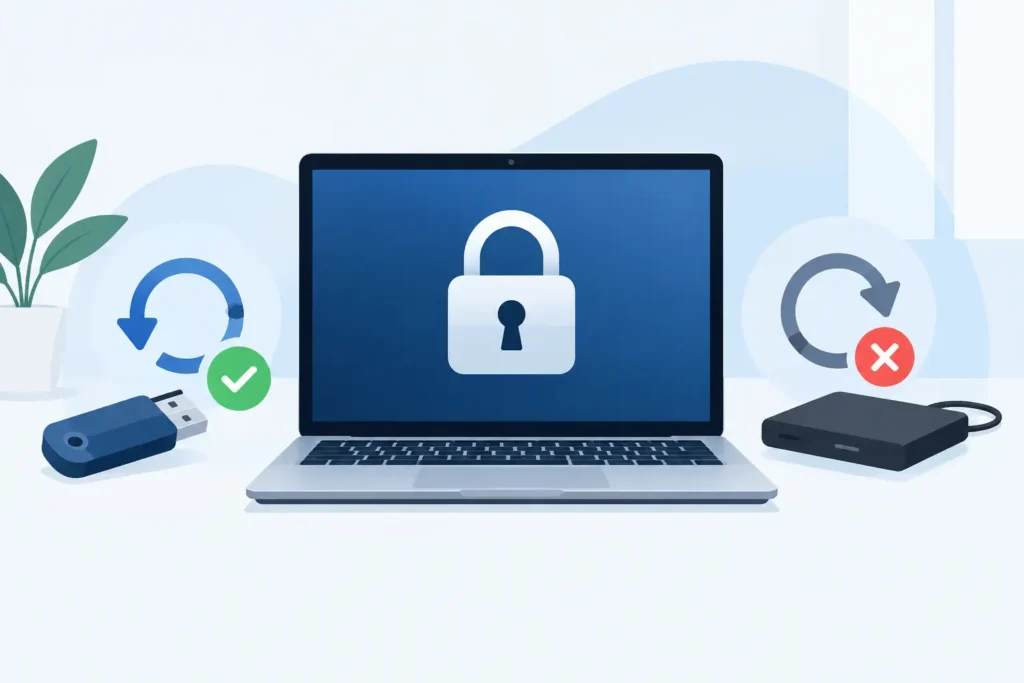
A Mac that will not accept its password can look like a straightforward login problem. With FileVault enabled, it may be something more serious: the drive is encrypted, and the files cannot be read until the correct decryption key is available. FileVault recovery is therefore not about bypassing security. It is about establishing whether a valid password, recovery key, institutional key or usable backup still exists, then protecting the device from further damage.
That distinction matters. If the encryption credentials are genuinely gone, no software tool, repair shop or data recovery company can decrypt the contents by force. If the credentials still exist but the Mac has failed, the prospects can be very different.
What FileVault encryption changes
FileVault encrypts the internal storage on modern Macs. When the Mac starts, macOS needs an authorised user password or a recovery key to unlock the encrypted volume. Only then can the operating system access the files stored within it.
On Apple silicon Macs and many newer Intel Macs with a T2 security chip, encryption is closely integrated with the hardware security architecture. This delivers strong protection if a Mac is lost or stolen, but it also limits recovery options when credentials are missing. The drive cannot simply be removed, connected to another computer and scanned in the conventional way.
A useful rule is this: data recovery can address physical failure, file-system corruption and accidental deletion only after the encrypted data can be unlocked. Encryption credentials come first.
When FileVault recovery may be possible
The outcome depends on the cause of the problem, not merely the message appearing on screen. A failed Mac is not automatically a lost-data case, and a forgotten password is not automatically unrecoverable.
You still know the correct login password
If the password is known but the Mac will not boot, freezes at startup or cannot mount its internal storage, the password may still unlock the encrypted volume during a controlled recovery attempt. The issue could be a failing SSD, damaged macOS installation, corrupt APFS container or logic board fault.
This is where professional assessment is valuable. Repeated startup attempts, operating system reinstalls and improvised repairs can alter the condition of a failing device. The objective is to preserve the storage and establish whether the encrypted volume can be accessed safely with the known credentials.
You have the 24-character recovery key
A FileVault recovery key is often the most important piece of information in a recovery case. It is normally a 24-character code, displayed when FileVault is set up and intended for use if authorised user passwords are unavailable.
Check printed records, password managers, encrypted personal records and documentation from the Mac’s original setup. For business-owned Macs, the key may have been escrowed through mobile device management or held by the organisation’s IT team. Do not post it in a support forum, send it to an unverified third party or type it into a website claiming to test recovery keys.
A valid key can restore access, but it must be entered carefully. Multiple incorrect attempts create confusion at the worst possible moment, particularly if the Mac is already unstable.
The Mac is managed by an organisation
Company, school and enterprise Macs may use an institutional recovery mechanism. Depending on how the Mac was configured, an administrator may be able to retrieve an escrowed personal recovery key through the organisation’s management platform.
This is not a universal solution. It depends entirely on whether key escrow was configured before the incident and whether the device remains properly recorded in the management system. IT teams should verify the Mac’s serial number and management history before attempting resets or reinstalls.
A backup exists outside the encrypted Mac
A Time Machine backup, external clone, cloud-synchronised folder or separate archive may contain the files required, even if the internal drive cannot be unlocked. The backup itself may also be encrypted, so its own password or recovery information is still required.
For urgent business cases, identify the most recent usable copy rather than assuming every backup is complete. Shared folders, email attachments, server copies and version histories can sometimes reduce the impact of a locked Mac while the primary device is assessed.
When recovery is not technically possible
There is a hard boundary with FileVault: if no valid password, recovery key, institutional key or accessible decrypted backup exists, the encrypted data cannot be decrypted. This is not a limitation of one recovery tool or one laboratory. It is the purpose of properly implemented encryption.
A macOS password reset is also not the same as regaining access to FileVault-protected data. In some circumstances, a new user account can be created or a password can be changed, but the old encrypted user data may remain inaccessible because the original credentials were needed to unlock it.
Likewise, erasing the Mac and reinstalling macOS may make the computer usable again, but it destroys the opportunity to recover the original local files. It should never be the first response where irreplaceable data is involved.
What to do when your FileVault Mac will not open
First, stop guessing. If you have tried several passwords, pause and verify keyboard layout, Caps Lock status and whether you are entering a login password or a recovery key. A changed keyboard layout can make a familiar password appear wrong.
Next, preserve the Mac’s current state. Keep it connected to suitable power, but do not repeatedly force restart it, erase it, reinstall macOS or run cleaning utilities. If the Mac makes unusual noises, becomes excessively hot, suffers liquid damage or intermittently detects its storage, switch it off and seek specialist advice. Continued operation can worsen an underlying hardware problem.
Then gather the evidence that can change the outcome: the exact on-screen message, Mac model, serial number, the last successful login date, known passwords, recovery-key records, backup locations and any corporate management details. For a business device, involve the authorised IT administrator early. For a personally owned Mac, avoid sharing credentials widely while asking for help.
Finally, distinguish between an access problem and a storage problem. A Mac that accepts the password but cannot load files may need technical recovery work. A Mac that rejects every valid credential may require password, recovery-key or management investigation first. Treating both cases as identical wastes time and can increase risk.
How a professional assessment should work
A credible FileVault case begins with a clear explanation of the encryption boundary. Any provider promising to “crack” modern FileVault encryption without a password or recovery key should be treated with caution. Honest advice may be difficult to hear, but it protects customers from paying for impossible claims.
Where valid credentials are available, the technical work can involve stabilising the Mac, assessing storage health, investigating APFS and macOS damage, and creating a controlled copy of accessible data. The method varies sharply between a removable Intel SSD, a soldered Apple silicon storage system and a Mac with wider logic board damage.
Confidentiality is equally important. A recovery provider may need access to credentials solely to test and unlock the volume, so secure handling, documented procedures and clear communication are not optional. Data Recovery Lab assesses Mac data-loss cases in a real London laboratory, with secure handling and a no-recovery, no-fee approach where recovery is technically viable.
Protecting against the next FileVault emergency
FileVault is worth keeping enabled for most people and organisations. The answer is not to weaken encryption, but to manage recovery information properly. Store the recovery key in a reputable password manager or other secure record separate from the Mac, and make sure at least one trusted person or authorised business process can access it when necessary.
Maintain tested backups. A backup is only useful if it contains the right files, can be located quickly and its encryption password is known. For businesses, escrow recovery keys through managed systems, document ownership changes and review backup restoration procedures rather than relying on assumptions.
A locked FileVault Mac can create real pressure, especially when it holds client work, legal records, family photographs or the only copy of a project. The safest next step is usually the least dramatic one: preserve the device, locate the legitimate credentials and get an expert opinion before making a change that cannot be undone.
